How to translate English subtitles in PS5, PS5 Pro and PS4 games: a step-by-step guide
Translate English subtitles in PS5, PS5 Pro and PS4 games into your language with AI over Remote Play: setup, second PSN account, network and video tips.
Published: · 5 min read

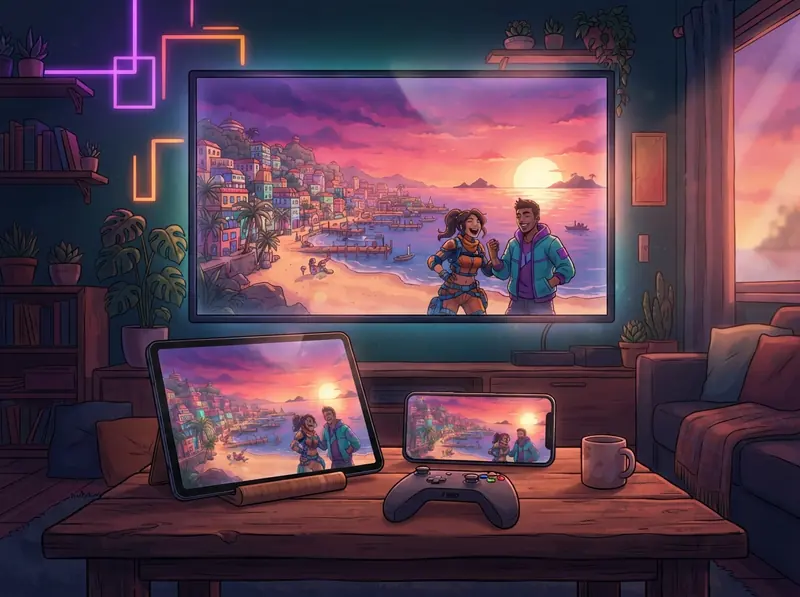
Following the story of a game that isn't available in your language can be exhausting: fast-paced dialogue, idioms you don't know, a scene that loses its meaning because you missed one line. GlossaSub solves this without installing anything on your console or your game. It reads the game's English subtitles, translates them with AI into your language (there are 12 translation languages) within seconds, and shows the translation on your phone, your tablet or right over the game on your TV. In this guide we walk you through the PS5, PS5 Pro and PS4 setup from start to finish, new games like GTA VI included.
How does GlossaSub work on PS5, PS5 Pro and PS4?
GlossaSub uses Sony's official Remote Play connection. Remote Play sends a copy of the console's picture to another device on the same network. GlossaSub reads the subtitle area of that copy on your phone or tablet, translates the text and shows the result. You keep playing on your TV with your own controller as usual; since the TV shows the PS5 directly, the game picture has no added lag.
- Nothing is installed on the console, the game or the game files, and no file is ever touched.
- It works with every game that shows English subtitles on screen; the game doesn't have to be on any list.
- The AI (Claude and Gemini) knows the game and its characters and translates in context: character names, place names and the game's tone are preserved.
What do you need?
- A PS5, PS5 Pro, PS4 or PS4 Pro console with English subtitles turned on in the game. The setup on PS5 Pro is the same as on PS5.
- An Android phone or tablet with the GlossaSub app from Google Play (the iOS version is coming soon).
- The console, the phone and (if you use it) the TV connected to the same network on the same router.
- A free second PSN account (we explain why below).
Why do you need a second PSN account?
If you connect to Remote Play with your own account, the PS5 hands controller input over to that device and your game is interrupted. That's why GlossaSub watches the picture with a free second PSN account. You keep playing with your own main account; the second account only sees the screen and never controls the game. You add the account just once. The PSN sign-in happens on Sony's own page; we never see your password.
Don't be surprised if you briefly see a "second user" or two Remote Play connections on your PS5: the PS5 shows this account as a Remote Play user. While reconnecting, two connections may appear for a moment; one of them closes on its own.
Step-by-step setup
- On the PS5, turn on Remote Play under Settings › System › Remote Play.
- Open GlossaSub, choose PlayStation on the home screen and sign in with your second PSN account on Sony's page.
- Enter the 8-digit code shown on the PS5 under Settings › System › Remote Play › Link Device into the app.
- Start your game and turn on English subtitles in the game's settings.
- In the app, choose where the subtitles should appear: this screen, the TV or both.
- Make sure the Read area frame covers the spot where the game's subtitles appear. On a fresh install, text recognition needs about half a minute to get ready the first time.
From then on everything runs by itself: a subtitle is read the moment it appears on screen, and its translation shows up within seconds.
Tips for your network and video quality
How fast subtitles arrive depends largely on your network. If the Remote Play picture freezes, reading has to wait too.
- Connect the PS5 to your router with a cable. This is the most effective fix.
- Guest networks, a repeater's separate network or mobile data won't work. If your router broadcasts 2.4 GHz and 5 GHz under different names, either one is fine, as long as it's the same router.
- If the picture stutters, set Settings › Devices › PS5 video quality to Balanced or Low. The default of 720p was chosen for smooth streaming even on slow networks.
- Lines from a ready-made game pack appear instantly; an AI translation takes about a second.
Common situations
The controller turns off or the connection drops
The PSN account you connected in the app must not be the same account you're playing with on the controller. Switch to your own main account on the controller and keep the second account in the app.
The PS5 shows a "Remote Play connected" notification
This is the PS5's own notification and doesn't affect your game. If you turn off the last option under Settings › System › Remote Play, both the notification and the icon at the top of the screen disappear.
The TV switches to the PS5 input by itself
On the PS5, turn off "Enable HDMI Device Link" under Settings › System › HDMI. If it keeps happening, turn off the TV's HDMI-CEC setting (Anynet+ on Samsung, SimpLink on LG, BRAVIA Sync on Sony).
Not near your console? Try demo mode
If you're not at your console, the app's trial mode lets you see right away how translation works in a sample game scene. You can also try the same scene on our website's demo page.
Conclusion
To play a PS5, PS5 Pro or PS4 game with English subtitles (GTA VI included) in your own language, you don't need to change consoles, buy the game again or install anything. Download GlossaSub, add a second PSN account, link your PS5 and start playing. If you get stuck, check the frequently asked questions or write to us.