Subtitle translation with your camera: Switch, PC, TV shows, movies and YouTube
No PSN account or console connection? GlossaSub's Translate with camera reads English subtitles on any screen in your language. Tripod, frame and lighting tips.
Published: · 3 min read
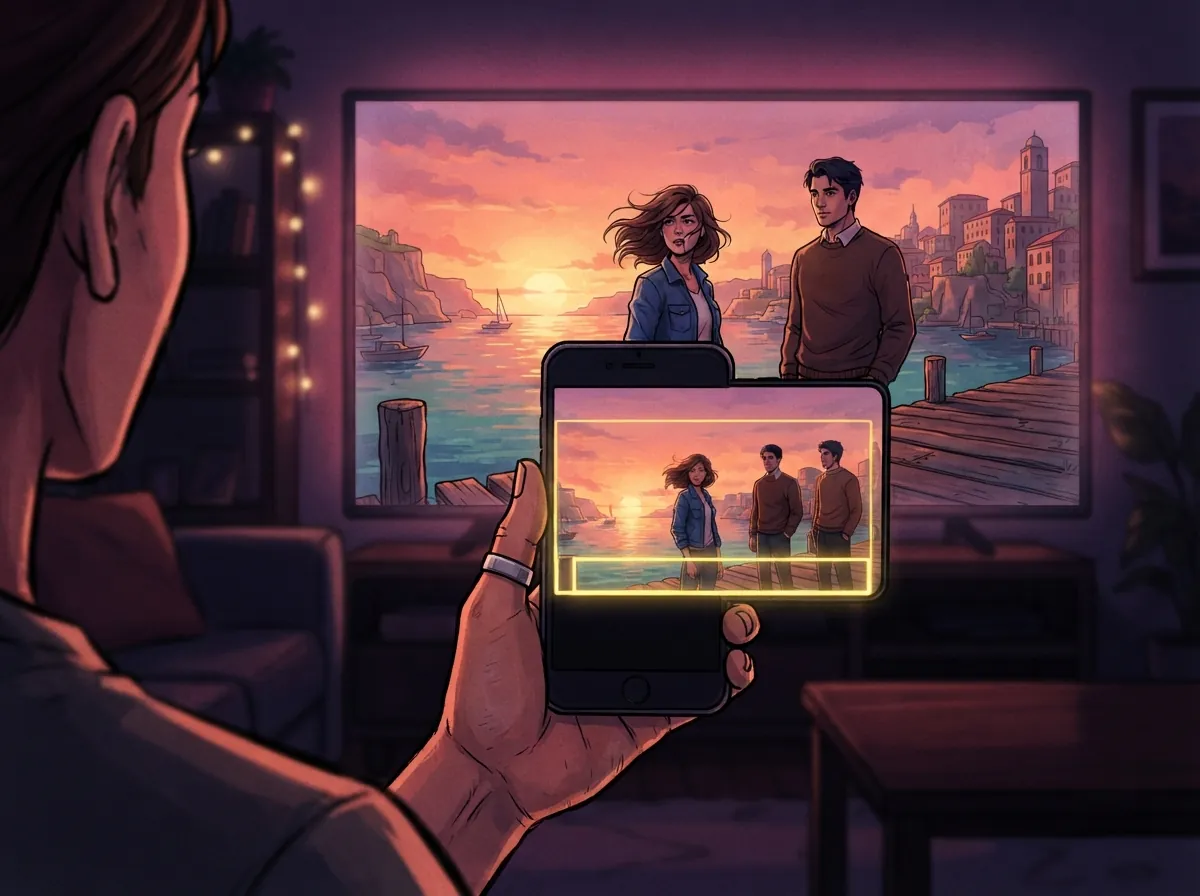
Not every game is played on a PS5 or an Xbox. Nintendo Switch, a computer, an older console, a TV show, a movie or a YouTube video: wherever English subtitles appear, GlossaSub's Translate with camera feature lets you read them in your own language. No PSN sign-in, console pairing or setup is needed; your phone's camera is enough.
How does Translate with camera work?
You point your phone at the screen (a TV or a monitor). In the camera picture, GlossaSub reads the text inside the yellow frame you've placed, translates it with AI and shows the translation on your phone's screen, right where the subtitle is. That way you see the scene and the translation at the same time while looking at your phone.
- The camera picture never leaves your device; only the subtitle text that was read is processed for translation.
- Nothing is installed on the console, the computer or the TV.
- If you like, you can also listen to the translation out loud.
Step by step
- On GlossaSub's home screen, tap Translate with camera.
- Hold your phone up to the screen or, better yet, fix it in front of the screen with a tripod.
- Move the yellow frame over the area where the subtitles appear. The frame should cover only the subtitle lines; extra area slows reading down.
- Tap Start. The translation appears where the subtitle is.
Tips for the best results
Keep your phone steady
A tripod makes the biggest difference. A handheld phone shakes, the picture drifts and reading gets harder. A simple tabletop tripod or phone holder makes reading both faster and more accurate.
Face the screen straight on
Hold your phone as square to the screen as you can. Looking at an angle distorts the letters. Place the phone just far enough from the screen that the subtitle line is clearly legible in the camera.
Reduce reflections
Reflections of lamps or windows on the screen make reading harder. Dimming the room lights a little or changing the phone's angle is usually enough.
Make the subtitles bigger
If you can increase the subtitle size in the game or the video player, do it. High-contrast subtitles (white text on a dark background) are read best.
When can you use it?
- Nintendo Switch and other consoles without Remote Play.
- PC games: the game on your monitor or the screen of another computer.
- TV shows and movies: broadcast TV, streaming services or Blu-ray.
- YouTube and other video sites.
- Times when you have a PS5 or an Xbox but don't want to use Remote Play.
The difference between the camera and the PS5 connection
The PS5 and Xbox connections use a digital copy of the picture, so they give the sharpest reading and you don't have to hold your phone. The camera route works on any screen; the picture quality depends on the camera, the lighting and how steady the phone is. Both use the same AI translation, the same dubbing and the same ready-made game packs.
Conclusion
Wherever the subtitles are, your phone's camera can translate them into your language. A tripod, a well-placed yellow frame and a few seconds are all it takes. A short version of the steps in the app is on the help page.