Show the translation over the game on your TV: Samsung, LG and Google TV guide
Show the translation over the game on your TV: setup and fixes for Samsung (2019+), LG (2021+, via the browser) and Google TV / Android TV (GlossaSub TV).
Published: · 4 min read
Android TV / Google TV: download GlossaSub TV for free
- On the TV, open the Downloader app, type glossasub.com/tv.apk, download and install it (allow unknown sources if asked).
- It is awaiting approval on Google Play; once approved you can also get it there.
This is only the TV add-on; translation is done by the GlossaSub app on your phone (Google Play).
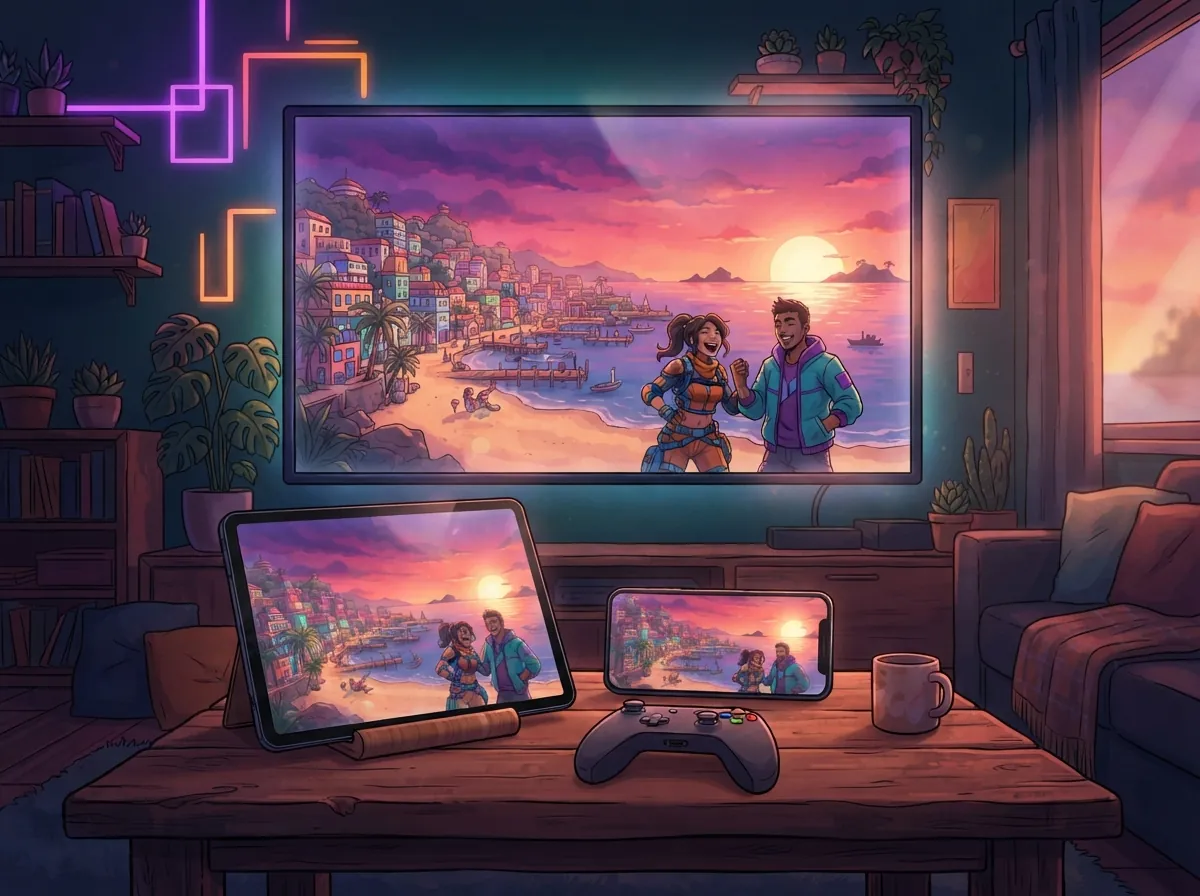
Reading the translation on your phone is convenient, but the most natural experience is seeing the subtitles on your TV, right over the game. GlossaSub does this on Samsung, LG and Google TV / Android TV sets: the translation in your language sits on top of the game's English subtitle on a dark background. Size, color, background and position are up to you. In this guide we cover the setup for each TV brand and the most common situations.
Which TVs are supported?
- Samsung (2019 and later): a small GlossaSub app is installed on the TV once.
- LG (2021 and later): no installation needed; you open glossasub.com/tv in the TV's web browser.
- Google TV / Android TV (Sony, Philips, TCL, Vestel and others): you install the separate GlossaSub TV app from Google Play.
If your TV isn't supported, you can read the subtitles on your phone or tablet, or use camera translation.
Google TV and Android TV: the easiest way
- Open Google Play on the TV and install the GlossaSub TV app.
- Make sure the TV and your phone are on the same Wi-Fi network.
- Open GlossaSub TV on the TV. The app finds your phone by itself; you don't need to enter a code.
LG TV: via the browser, no installation
- Turn on your PS5. On the LG remote, open Home › Web Browser.
- Type glossasub.com/tv into the address bar.
- If the game doesn't show, use the 1–4 buttons on the remote to select the HDMI input your PS5 is connected to.
- Enter the 10-character code shown on the TV into the app.
The subtitles travel from your phone to the TV encrypted; our server only relays them, it doesn't read or store them.
Samsung TV: a one-time setup
On Samsung, the TV app is installed once using developer mode. Developer mode doesn't harm the TV and doesn't affect your warranty.
- On the TV, open Apps, press 1 2 3 4 5 on the remote and select Developer mode: On.
- Enter the address shown in the app into the Host PC IP field and press OK.
- Hold down the power button until the TV turns off and back on (about 5 seconds).
- In the app, tap Connect TV › Samsung › Install.
Adjusting the subtitle appearance
Under Settings › Subtitle appearance › On TV you can set the size to Large or Extra Large and change the color, background and position. Changes are sent to the TV instantly. If you choose "Over the English", the translation completely covers the game's English subtitle.
Your phone has to stay on while translation is running: tap Dim screen on the home screen to darken the display, and tap again to turn it back on.
Game Mode and lag
If you show the subtitles only on your phone, the TV shows the PS5 directly and there's no lag at all. When showing them over the game on the TV, some TVs route the picture through the app window and may turn off Game Mode. If the controller feels sluggish, try reading the subtitles on your phone or tablet instead.
Common situations
GlossaSub on the TV won't open or connect
Fully restart the TV: hold the remote's power button until the TV turns off and back on. A normal power-off only puts the TV to sleep. Then check that the TV is on the same network as your phone and that you accepted the permission prompt on the TV.
My Samsung TV switches to HDMI by itself
Turn off Anynet+ (HDMI-CEC) and Auto Source Switching under Settings › All Settings › Connection › External Device Manager.
Does developer mode turn off on LG?
On the LG app route, developer mode stays on for at most 1000 hours; you can extend it with EXTEND in the Developer Mode app on the TV. The browser route (glossasub.com/tv) doesn't require developer mode.
Conclusion
One app on Google TV, one address on LG, a one-time setup on Samsung: the translation now sits right over the game. All the steps are summarized on the help page.